Video Dataset
This guide explains how to load videos into LightlyStudio, how to explore them in the GUI, and how to use the Python API to query and manipulate them.
Load a Video Dataset
From a Folder
Use add_videos_from_path to load videos from a folder:
import lightly_studio as ls

# We download an example dataset for this guide.
dataset_path = ls.utils.download_example_dataset(download_dir="dataset_examples")

# Create an empty dataset and add videos from a folder.
dataset = ls.VideoDataset.create()
dataset.add_videos_from_path(path=f"{dataset_path}/youtube_vis_50_videos/train/videos")
The ls.VideoDataset.create() method call is lightweight and initializes an empty dataset.
The add_videos_from_path(...) method accepts a path to a file or a folder. If the path is a folder,
it will recursively search for videos in it. A remote path like s3://my-bucket/my-folder is also
supported, see Using Cloud Storage for more details.
Videos are automatically embedded so that embedding plot and video search
are enabled. To skip embedding, pass embed=False to the method.
See the API reference for
the full list of arguments.
From an Annotation Format
VideoDataset can be loaded with annotations from the YouTube-VIS format. Currently, object detection
and instance segmentation annotations are supported. See
API reference for full details.
import lightly_studio as ls

# Download the example dataset (will be skipped if it already exists)
dataset_path = ls.utils.download_example_dataset(download_dir="dataset_examples")

dataset = ls.VideoDataset.create()
dataset.add_videos_from_youtube_vis(
    annotations_json=f"{dataset_path}/youtube_vis_50_videos/train/instances_50.json",
    videos_path=f"{dataset_path}/youtube_vis_50_videos/train/videos",
)
The YouTube-VIS format details:
dataset/
├── videos/
│   ├── video1.mp4
│   ├── video2.mp4
│   └── ...
└── annotations.json        # Single JSON file containing all annotations
YouTube-VIS uses a single JSON file containing all annotations, based on the COCO format. The format consists of three main components:
- Videos: Defines metadata for each video in the dataset.
- Categories: Defines the object classes.
- Annotations: Defines object bounding boxes with per-frame tracking.
Note that the original YouTube-VIS format provides each video as a list of extracted frames.
LightlyStudio instead expects the videos as video files. The file name is deducted
from frame path. E.g. for video003/00010.jpg, the video file name is expected
to be video003.* with a video file extension. You can specify the exact name by setting the
folder in the frame path, e.g. video003.mp4/00010.jpg.
import lightly_studio as ls

# Download the example dataset (will be skipped if it already exists)
dataset_path = ls.utils.download_example_dataset(download_dir="dataset_examples")

dataset = ls.VideoDataset.create()
dataset.add_videos_from_youtube_vis(
    annotations_json=f"{dataset_path}/youtube_vis_50_videos/train/instances_50.json",
    videos_path=f"{dataset_path}/youtube_vis_50_videos/train/videos",
    annotation_type=ls.AnnotationType.INSTANCE_SEGMENTATION,
)
The YouTube-VIS format details:
dataset/
├── videos/
│   ├── video1.mp4
│   ├── video2.mp4
│   └── ...
└── annotations.json        # Single JSON file containing all annotations
YouTube-VIS uses a single JSON file containing all annotations, based on the COCO format. The format consists of three main components:
- Videos: Defines metadata for each video in the dataset.
- Categories: Defines the object classes.
- Annotations: Defines object instances with per-frame segmentation masks.
Note that the original YouTube-VIS format provides each video as a list of extracted frames.
LightlyStudio instead expects the videos as video files. The file name is deducted
from frame path. E.g. for video003/00010.jpg, the video file name is expected
to be video003.* with a video file extension. You can specify the exact name by setting the
folder in the frame path, e.g. video003.mp4/00010.jpg.
From a Pre-Existing Dataset
Once a dataset is populated, the data is stored in a database. It can be loaded later as follows to skip indexing and embedding it again:
import lightly_studio as ls

# Load an existing dataset from the database.
dataset = ls.VideoDataset.load()

# A helper method that creates a dataset only if it does not exist yet.
dataset = ls.VideoDataset.load_or_create()
All three functions create(), load(), and load_or_create() accept an optional name argument
to store multiple datasets in the database, note however that the open-source version of LightlyStudio
GUI displays only a single dataset.
Tip
The add_videos_from_path(...) and add_videos_from_youtube_vis(...) methods skip
duplicate videos, the duplicates are detected based on absolute path.
Therefore you can safely use them in a single script with load_or_create(),
adding and embedding the videos will be skipped on subsequent calls.
Video Dataset in the GUI
Launch the GUI from your terminal:
lightly-studio gui
The command starts a local web server. Click the link printed in the console - by default
http://localhost:8001 - to open the GUI in your browser. Note that the GUI can also be
started from a Python script by calling ls.start_gui().
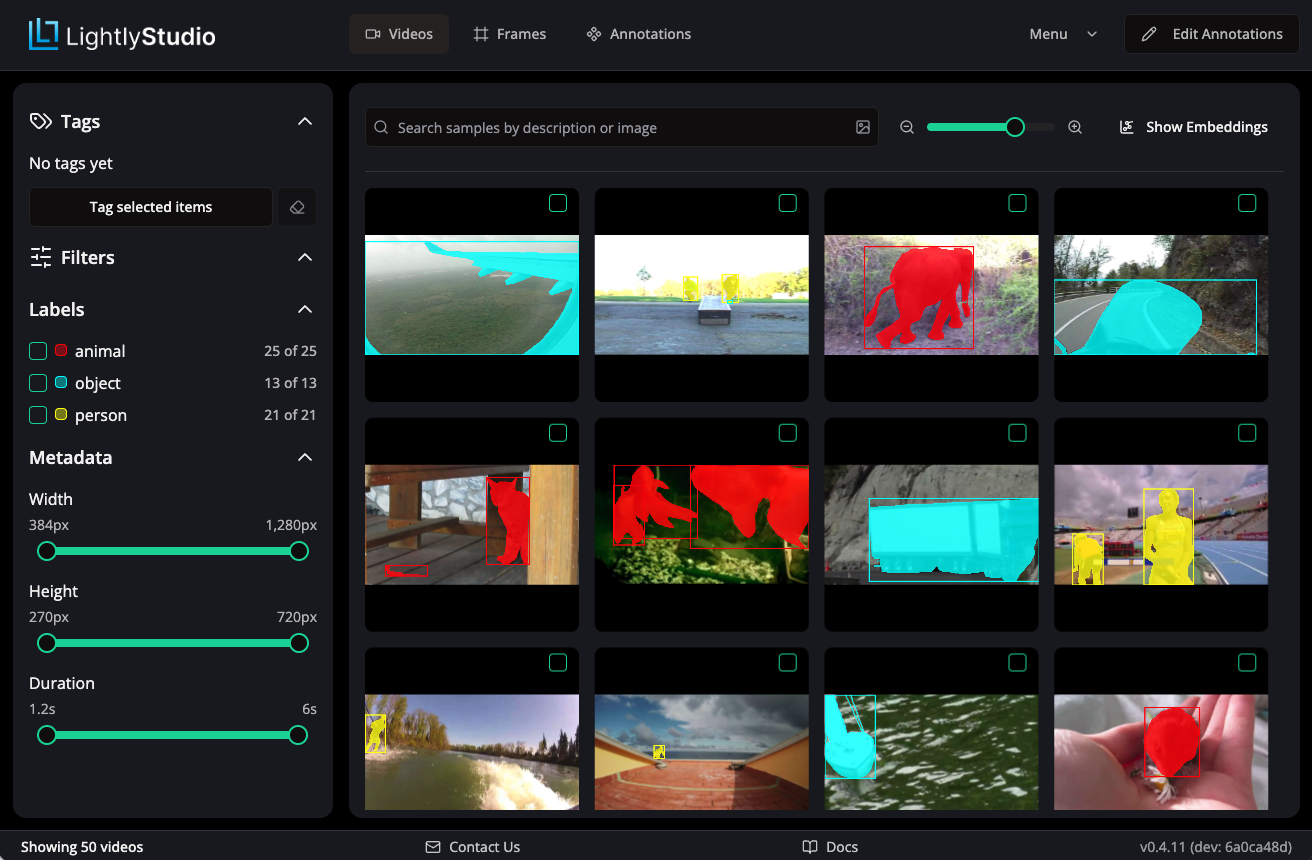
The GUI for a video dataset has two main pages: Videos and Frames, accessible via the navigation bar at the top.
Video Grid View
The Videos page shows a grid of video thumbnails. From here, you can perform multiple actions:
- Hover with a mouse over a video to see a quick playback preview.
- Use the left panel to filter the videos by tags, annotation labels or metadata (width, height, duration).
- Use the search bar to do similarity search by text or another video from the dataset.
- Use the
Show Embeddingsbutton to explore the data in embedding space. - Use the
Menudropdown for further actions like plugins, sampling, classification, export and more.
Refer to dedicated pages in this documentation on every feature for more details.
Video Detail View
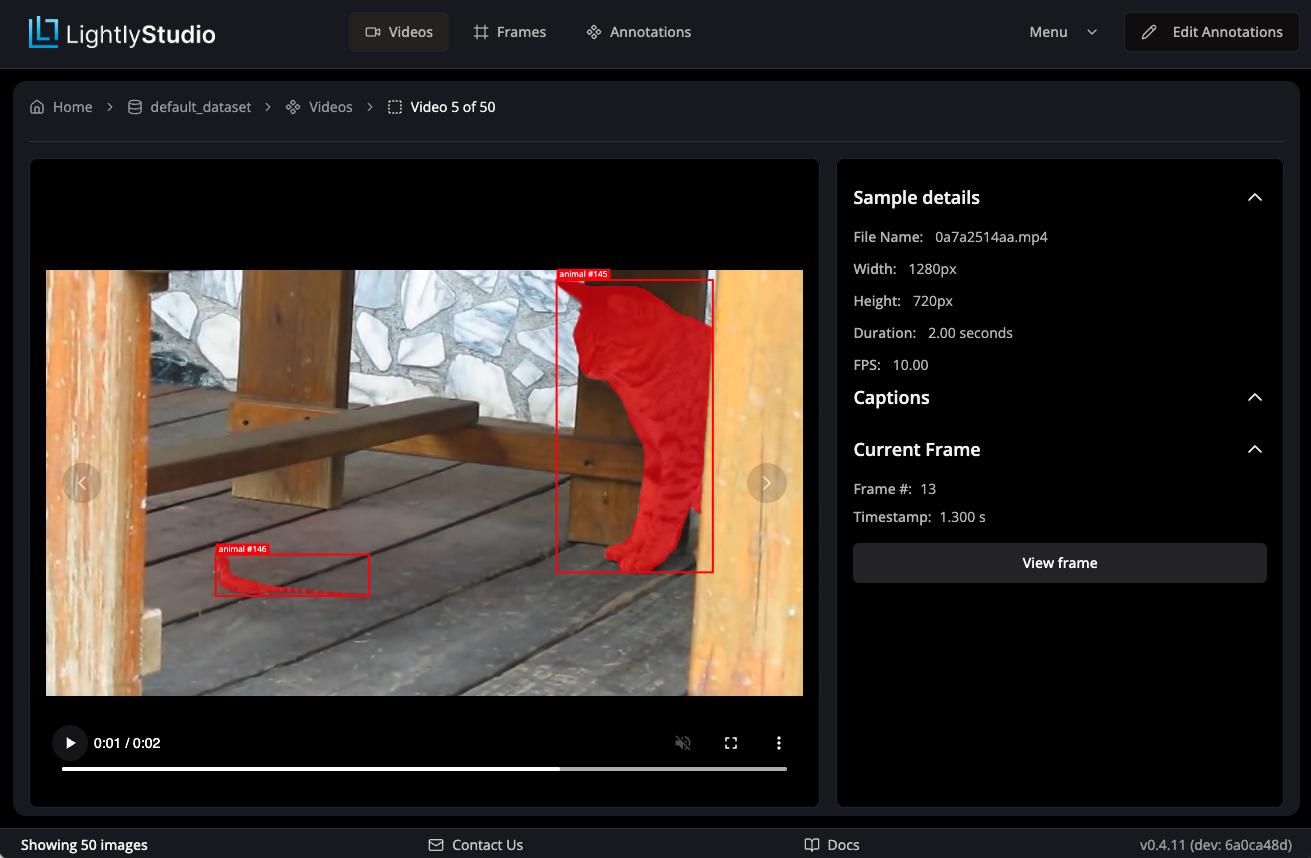
Double-clicking on a video opens the video detail view. Here you can play the video, view
frame-level annotations, add captions or view metadata. Use the View frame link to navigate
to the frame detail view of the currently shown frame.
Frame Grid View
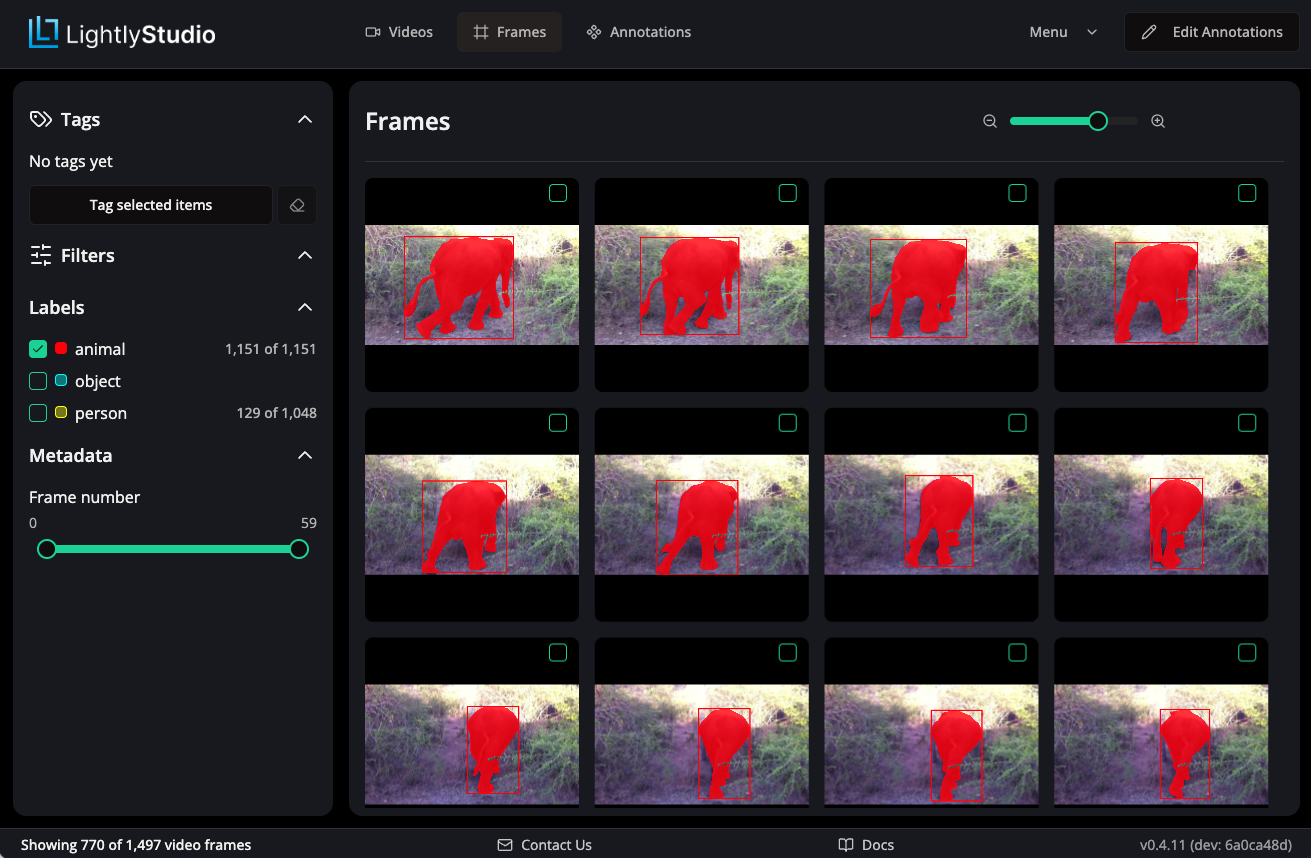
The Frames page shows a grid of individual video frames extracted from all videos. You can use the left panel to filter frames by tags, annotation labels or metadata.
Frame Detail View
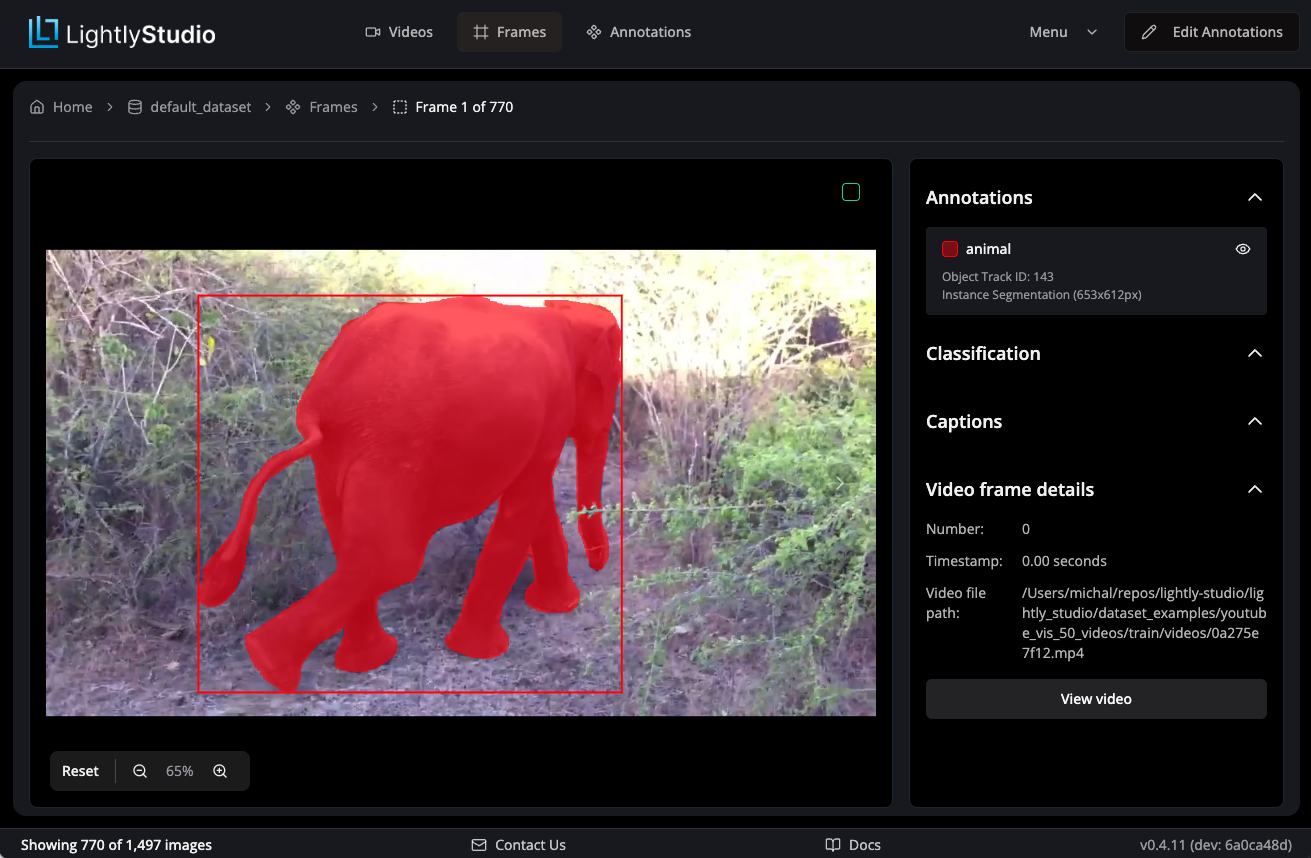
Double-clicking on a frame opens the frame detail view. Here you can edit
frame-level annotations with object track IDs, add classifications or captions,
and see the frame details (frame number, timestamp, source video file path).
Use the View video link to navigate to the parent video.
Video Dataset in the Python API
VideoDataset class
The main entrypoint is the VideoDataset class. An instance of it can be created as described above by using one of the factory methods:
dataset = ls.VideoDataset.create()
dataset = ls.VideoDataset.load()
dataset = ls.VideoDataset.load_or_create()
Once samples are added to the dataset, they can be iterated over, yielding VideoSample objects:
for video in dataset:
    print(video.file_name)
VideoSample class
VideoSample class provides read and write access to the video data.
# Grab one sample
video = next(iter(dataset))

# Video properties
print(video.file_name)
print(video.file_path_abs)
print(video.width)
print(video.height)
print(video.duration_s)
print(video.fps)

# Tags
video.tags = ["tag1", "tag2"]
video.add_tag("needs_review")
video.remove_tag("needs_review")
print(video.tags)

# Captions
video.captions = ["Caption 1", "Caption 2"]
video.add_caption("Caption 3")
print(video.captions)

# Metadata
video.metadata["my_key"] = "my_value"
print(video.metadata["my_key"])
Querying the Dataset
Use Dataset Query in Python when you need reusable subsets in code for filtering, sorting, slicing, export, or selection. Video query expressions use VideoSampleField.