Object Detection

Note
🔥 LightlyTrain’s LTDETRv2 is out with great improvements from SOTA research! We achieved 50.7mAP50:95 on COCO 2017 validation set (+1 mAP50:95 from the previous LTDETR with 55% shorter training schedule). We also achieved 5.4ms latency on an NVIDIA T4 using TensorRT, FP16, batch size 1, and input resolution 640x640!
Benchmark Results
Below we provide the model checkpoints and report the validation mAP50:95 and
inference latency of the LTDETR family, fine-tuned on the COCO dataset. You can check
here for how to use these model checkpoints for
further fine-tuning. The average latency values were measured using TensorRT version
10.13.3.9 and on a Nvidia T4 GPU with batch size 1.
COCO
Model |
Val mAP50:95 |
Latency (ms) |
Params (M) |
Input Size |
|---|---|---|---|---|
picodet-s-coco |
26.7* |
2.2* |
1.17 |
416×416 |
picodet-l-coco |
32.0* |
2.4* |
3.75 |
416×416 |
ltdetrv2-s-coco (NEW) |
50.7 |
5.4 |
9.9 |
640×640 |
dinov3/vitt16-ltdetr-coco |
49.8 |
5.4 |
10.1 |
640×640 |
dinov3/vitt16plus-ltdetr-coco |
52.5 |
7.0 |
18.1 |
640×640 |
dinov3/vits16-ltdetr-coco |
55.4 |
10.5 |
36.4 |
640×640 |
dinov3/convnext-tiny-ltdetr-coco |
54.4 |
13.3 |
61.1 |
640×640 |
dinov3/convnext-small-ltdetr-coco |
56.9 |
17.7 |
82.7 |
640×640 |
dinov3/convnext-base-ltdetr-coco |
58.6 |
24.7 |
121.0 |
640×640 |
dinov3/convnext-large-ltdetr-coco |
60.0 |
42.3 |
230.0 |
640×640 |
*Picodet models are in beta and we report preliminary results.
Object Detection with LTDETR
LightlyTrain’s LTDETR is a DETR-based detection family following the latest advancements in research. With the newest LTDETRv2, it supports ECViT backbones from EdgeCrafter. The old LTDETR supports DINOv2 ViT, DINOv3 ViT and ConvNext backbones (also with EUPE weights). See model for details on what backbones are supported.
Train an LTDETR model
Training an object detection model with LightlyTrain is straightforward and only requires a few lines of code. See data for details on how to prepare your dataset.
import lightly_train

if __name__ == "__main__":
    lightly_train.train_object_detection(
        out="out/my_experiment",
        model="ltdetrv2-s-coco",
        data={
            "format": "yolo",
            "path": "my_data_dir",
            "train": "images/train2017",
            "val": "images/val2017",
            "names": {
                0: "person",
                1: "bicycle",
                # ...
            },
            # Optional, classes that are in the dataset but should be ignored during
            # training.
            # "ignore_classes": [0],
            #
            # Optional, skip images without label files. By default, these are included
            # as negative samples.
            # "skip_if_label_file_missing": True,
        },
    )
During training, both the
best (with highest validation mAP50:95) and
last (last validation round as determined by
save_checkpoint_args.save_every_num_steps)
model weights are exported to out/my_experiment/exported_models/, unless disabled in
save_checkpoint_args. You can use these weights to continue fine-tuning on another
task by loading the weights via model="<checkpoint path>":
import lightly_train

if __name__ == "__main__":
    lightly_train.train_object_detection(
        out="out/my_experiment",
        model="out/my_experiment/exported_models/exported_best.pt", # Use the best model to continue training
        data={...},
    )
Predict with model checkpoints
After the training completes, you can load the best model checkpoints for inference like this:
import lightly_train

model = lightly_train.load_model("out/my_experiment/exported_models/exported_best.pt")
results = model.predict("path/to/image.jpg")
Or use one of the models provided by LightlyTrain:
import lightly_train

model = lightly_train.load_model("ltdetrv2-s-coco")
results = model.predict("image.jpg")
results["labels"]   # Class labels, tensor of shape (num_boxes,)
results["bboxes"]   # Bounding boxes in (xmin, ymin, xmax, ymax) absolute pixel
                    # coordinates of the original image. Tensor of shape (num_boxes, 4).
results["scores"]   # Confidence scores, tensor of shape (num_boxes,)
Any other LTDETR model name (e.g. a dinov3/... model from the same family) works the
same way.
Visualize the Result
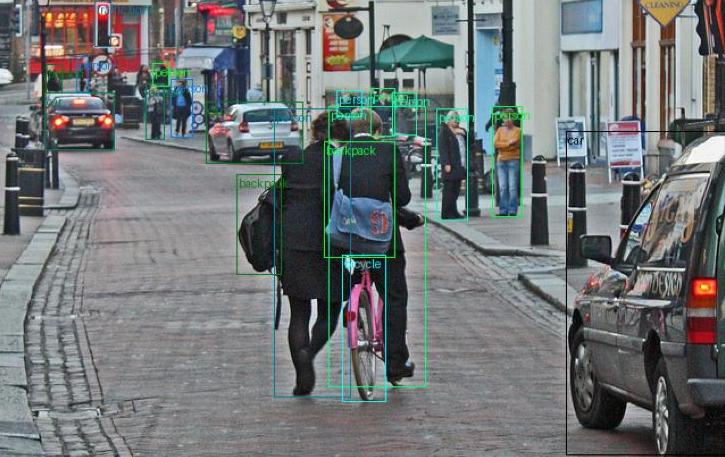
After making the predictions with the model weights, you can visualize the predicted bounding boxes like this:
import matplotlib.pyplot as plt
from torchvision import io, utils

import lightly_train

model = lightly_train.load_model("ltdetrv2-s-coco")
results = model.predict("image.jpg")

# Visualize predictions.
image_with_boxes = utils.draw_bounding_boxes(
    image=io.read_image("image.jpg"),
    boxes=results["bboxes"],
    labels=[model.classes[i.item()] for i in results["labels"]],
)

fig, ax = plt.subplots(figsize=(30, 30))
ax.imshow(image_with_boxes.permute(1, 2, 0))
fig.savefig("predictions.png")
The predicted boxes are in the absolute (x_min, y_min, x_max, y_max) format, i.e.
represent the size of the dimension of the bounding boxes in pixels of the original
image.
Improving Small Objects Detection
Detecting small objects in high-resolution images can be challenging because they may occupy only a few pixels when the image is resized to the model’s input resolution. To address this, we support Slicing Aided Hyper Inference (SAHI) allowing the model to make predictions from overlapping tiles of the original image at full resolution and then merge the predictions.
Using tiled inference requires no extra setup:
import lightly_train

model = lightly_train.load_model("ltdetrv2-s-coco")
results = model.predict_sahi(image="image.jpg")
results["labels"]   # Class labels, tensor of shape (num_boxes,)
results["bboxes"]   # Bounding boxes in (xmin, ymin, xmax, ymax) absolute pixel
                    # coordinates of the original image. Tensor of shape (num_boxes, 4).
results["scores"]   # Confidence scores, tensor of shape (num_boxes,)
You can customize the behavior via the following parameters:
overlap: Fraction of overlap between neighboring tiles. Higher values increase small-object recall but also increase computation.threshold: Minimum confidence score required to keep a predicted box.nms_iou_threshold: IoU threshold used for non-maximum suppression when merging predictions coming from different tiles.global_local_iou_threshold: Our SAHI-style inference combines predictions from both the global (full-image) view and the local tiles. To avoid duplicate detections, tile predictions are suppressed when they significantly overlap (iou > global_local_iou_threshold) with a prediction of the same class coming from the global view.
Out
The out argument specifies the output directory where all training logs, model
exports, and checkpoints are saved. It looks like this after training:
out/my_experiment
├── checkpoints
│   └── last.ckpt                                       # Last checkpoint
├── exported_models
|   └── exported_last.pt                                # Last model exported (unless disabled)
|   └── exported_best.pt                                # Best model exported (unless disabled)
├── events.out.tfevents.1721899772.host.1839736.0       # TensorBoard logs
└── train.log                                           # Training logs
The final model checkpoint is saved to out/my_experiment/checkpoints/last.ckpt. The
last and best model weights are exported to out/my_experiment/exported_models/ unless
disabled in save_checkpoint_args.
Tip
Create a new output directory for each experiment to keep training logs, model exports, and checkpoints organized.
Data
LightlyTrain supports training object detection models with images and bounding boxes. We support inputs in either the YOLO or COCO object detection formats.
We specify the training data with a data dictionary:
import lightly_train

lightly_train.train_object_detection(
    ...,
    data={
        "format": "yolo",        # optional, either "yolo" or "coco", defaults to "yolo"
        "ignore_classes": [...], # optional list of class IDs that should be skipped during training
         # format specific options
    },
)
The format key is optional and defaults to "yolo" if omitted.
Instead of a dictionary, you can also pass a path to a YAML file containing the same
configuration. This is convenient if you already have an Ultralytics-style data.yaml:
lightly_train.train_object_detection(
    ...,
    data="path/to/data.yaml",
)
Any keys in the YAML file that are not part of the configuration are ignored. The same
data argument (dictionary or YAML path) is also accepted by
benchmark_object_detection.
If you would like to skip specific classes during training, add their IDs to the
optional ignore_classes list. The trainer omits these classes from loss computation
and the exported model does not predict them.
YOLO format
For the YOLO format, every
image has a corresponding label file with the .txt extension. Each line in the label
file represents one object and contains the class ID followed by 4 normalized bounding
box coordinates (x_center, y_center, width, height). An example annotation file for an
image with two objects looks like this:
0 0.716797 0.395833 0.216406 0.147222
1 0.687500 0.379167 0.255208 0.175000
Your dataset directory should be organized like this:
my_data_dir/
├── images
│   ├── train
│   │   ├── image1.jpg
│   │   ├── image2.jpg
│   │   └── ...
│   └── val
│       ├── image1.jpg
│       ├── image2.jpg
│       └── ...
└── labels
    ├── train
    │   ├── image1.txt
    │   ├── image2.txt
    │   └── ...
    └── val
        ├── image1.txt
        ├── image2.txt
        └── ...
Alternatively, the splits can also be at the top level:
my_data_dir/
├── train
│   ├── images
│   │   ├── image1.jpg
│   │   ├── image2.jpg
│   │   └── ...
│   └── labels
│       ├── image1.txt
│       ├── image2.txt
│       └── ...
└── val
    ├── images
    │   ├── image1.jpg
    │   ├── image2.jpg
    │   └── ...
    └── labels
        ├── image1.txt
        ├── image2.txt
        └── ...
Each class in the dataset must be listed in the names dictionary. The keys are the
class IDs used inside the YOLO annotations and the values are the human-readable class
names. Any class IDs that appear in the label files but are not present in the
dictionary are silently ignored.
Missing Labels
There are three cases in which an image may not have any corresponding labels:
The label file is missing.
The label file is empty.
The label file only contains annotations for classes that are in
ignore_classes.
LightlyTrain treats all three cases as “negative” samples and includes the images in training with an empty list of bounding boxes.
If you would like to exclude images without label files from training, you can set the
skip_if_label_file_missing argument in the data configuration. This only excludes
images without a label file (case 1) but still includes cases 2 and 3 as negative
samples.
Example
import lightly_train

lightly_train.train_object_detection(
    ...,
    data={
        "format": "yolo",
        "path": "my_data_dir",
        "train": "images/train",
        "val": "images/val",
        "names": {...},
        "skip_if_label_file_missing": True, # Skip images without label files.
    }
)
COCO format
For the COCO format, every split has a separate annotations JSON file. It specifies which images and classes belong to the split and contains the bounding boxes. The structure of such a file is as follows:
{
    "images": [
        {
            "id": 1,
            "file_name": "image1.jpg"
        },
        {
            "id": 2,
            "file_name": "image2.jpg"
        }
    ],
    "categories": [
        {
            "id": 0,
            "name": "cat"
        },
        {
            "id": 1,
            "name": "dog"
        }
    ],
    "annotations": [
        {
            "id": 1,
            "image_id": 1,
            "category_id": 0,
            "bbox": [10, 20, 100, 80]
        },
        {
            "id": 2,
            "image_id": 1,
            "category_id": 1,
            "bbox": [150, 30, 200, 120]
        },
        {
            "id": 3,
            "image_id": 2,
            "category_id": 0,
            "bbox": [5, 10, 90, 70]
        }
    ]
}
The file_name field can also be an absolute or relative path to an image. One can
optionally specify the images directory so that the paths are resolved relatively to
that directory. If it is omitted, the paths are resolved relatively to the annotations
file. Furthermore, the images path itself is resolved relatively to the annotations
file.
It is good practice to have the same categories for all splits but in order to guarantee consistency, we always take them from the train split.
The bounding boxes bbox are specified in absolute coordinates (pixels) as follows:
[x, y, width, height]
Missing Labels
There are two cases in which an image may not have any corresponding labels:
There are no bounding boxes specified for an image in the annotations file.
The annotations file only contains annotations for classes that are in
ignore_classes.
LightlyTrain treats both cases as “negative” samples and includes the images in training with an empty list of bounding boxes.
If you would like to exclude images without bounding boxes from training, you can set
the skip_if_annotations_missing argument in the data configuration. This only
excludes images without bounding boxes (case 1) but still includes case 2 as negative
samples.
Example
import lightly_train

lightly_train.train_object_detection(
    ...,
    data={
        "format": "coco",
        "train": {"annotations": "train_labels.json", "images": "train_images/"},
        "val": {"annotations": "val_labels.json", "images": "val_images/"},
        "skip_if_annotations_missing": True, # Skip images without bounding boxes
    }
)
If in this particular example we specified file_name like this in the train annotation
file
{
    "id": 1,
    "file_name": "train_images/image1.jpg"
}
we could also omit images.
Image Formats
The following image formats are supported:
jpg
jpeg
png
ppm
bmp
pgm
tif
tiff
webp
dcm (DICOM) (only for old LTDETR)
For more details on LightlyTrain’s support for data input, please check the Data Input page.
Model
The model argument defines the model used for object detection training. The following
models are available:
LTDETRv2
The LTDETRv2 ECViT backbones are initialized from EdgeCrafter weights and are under the Apache 2.0 license. They currently support RGB images only.
ltdetrv2-s-coco(pretrained on COCO)ltdetrv2-sltdetrv2-mltdetrv2-lltdetrv2-x
LTDETR (legacy)
The old LTDETR weights are still supported with full compatibility.
Unless noted otherwise, all
DINOv2
and
DINOv3
backbones are initialized from weights pretrained by Meta. The non-EUPE models with
vitt16 and vitt16plus backbones use Lightly-pretrained DINOv3 backbone weights
instead.
DINOv3 models are under the DINOv3 license. Models with EUPE weights are under the FAIR Noncommercial Research License.
DINOv3 ViT backbones
dinov3/vitt16-ltdetr-coco(pretrained on COCO)dinov3/vitt16plus-ltdetr-coco(pretrained on COCO)dinov3/vits16-ltdetr-coco(pretrained on COCO)dinov3/vitt16-ltdetrdinov3/vitt16plus-ltdetrdinov3/vits16-ltdetrdinov3/vitb16-ltdetrdinov3/vitl16-ltdetr
DINOv3 ConvNext backbones
dinov3/convnext-tiny-ltdetr-coco(pretrained on COCO)dinov3/convnext-small-ltdetr-coco(pretrained on COCO)dinov3/convnext-base-ltdetr-coco(pretrained on COCO)dinov3/convnext-large-ltdetr-coco(pretrained on COCO)dinov3/convnext-tiny-ltdetrdinov3/convnext-small-ltdetrdinov3/convnext-base-ltdetrdinov3/convnext-large-ltdetr
DINOv3 ViT backbones with EUPE weights
dinov3/vitt16-eupe-ltdetrdinov3/vits16-eupe-ltdetrdinov3/vitb16-eupe-ltdetr
DINOv3 ConvNext backbones with EUPE weights
dinov3/convnext-tiny-eupe-ltdetrdinov3/convnext-small-eupe-ltdetrdinov3/convnext-base-eupe-ltdetr
DINOv2 ViT backbones
dinov2/vits14-ltdetrdinov2/vitb14-ltdetrdinov2/vitl14-ltdetrdinov2/vitg14-ltdetr
PicoDet (beta)
picodet-s-coco(pretrained on COCO)picodet-l-coco(pretrained on COCO)
Training Settings
See Train Settings on how to configure training settings.
Logging
See Logging on how to configure logging.
Resume Training
See Resume Training on how to resume training.
Default Image Transform Arguments
The following are the default image transform arguments. See Transforms on how to customize transforms.
DINOv3 LTDETR / LTDETRv2 Default Transform Arguments
Train
{
    "bbox_params": "BboxParams",
    "channel_drop": null,
    "copyblend": {
        "area_threshold": 100,
        "expand_ratios": [
            0.1,
            0.25
        ],
        "num_objects": 3,
        "prob": 0.5,
        "step_start": "auto",
        "step_stop": "auto"
    },
    "image_size": "auto",
    "mixup": {
        "prob": 0.5,
        "step_start": "auto",
        "step_stop": "auto"
    },
    "mosaic": {
        "fill_value": 0,
        "max_cached_images": 50,
        "max_size": null,
        "output_size": 320,
        "prob": 0.5,
        "random_pop": true,
        "rotation_range": 10.0,
        "scaling_range": [
            0.5,
            1.5
        ],
        "step_start": "auto",
        "step_stop": "auto",
        "translation_range": [
            0.1,
            0.1
        ]
    },
    "normalize": "auto",
    "num_channels": "auto",
    "photometric_distort": {
        "brightness": [
            0.875,
            1.125
        ],
        "contrast": [
            0.5,
            1.5
        ],
        "hue": [
            -0.05,
            0.05
        ],
        "prob": 0.5,
        "saturation": [
            0.5,
            1.5
        ],
        "step_start": "auto",
        "step_stop": "auto"
    },
    "random_flip": {
        "horizontal_prob": 0.5,
        "vertical_prob": 0.0
    },
    "random_iou_crop": {
        "crop_trials": 40,
        "iou_trials": 1000,
        "max_aspect_ratio": 2.0,
        "max_scale": 1.0,
        "min_aspect_ratio": 0.5,
        "min_scale": 0.3,
        "prob": 0.8,
        "sampler_options": null,
        "step_start": "auto",
        "step_stop": "auto"
    },
    "random_rotate": null,
    "random_rotate_90": null,
    "random_zoom_out": {
        "fill": 0.0,
        "prob": 0.5,
        "side_range": [
            1.0,
            4.0
        ],
        "step_start": "auto",
        "step_stop": "auto"
    },
    "resize": {
        "height": "auto",
        "width": "auto"
    },
    "scale_jitter": {
        "divisible_by": "auto",
        "max_scale": null,
        "min_scale": null,
        "num_scales": null,
        "prob": 1.0,
        "sizes": [
            [
                480,
                480
            ],
            [
                512,
                512
            ],
            [
                544,
                544
            ],
            [
                576,
                576
            ],
            [
                608,
                608
            ],
            [
                640,
                640
            ],
            [
                640,
                640
            ],
            [
                640,
                640
            ],
            [
                640,
                640
            ],
            [
                640,
                640
            ],
            [
                640,
                640
            ],
            [
                640,
                640
            ],
            [
                640,
                640
            ],
            [
                640,
                640
            ],
            [
                640,
                640
            ],
            [
                640,
                640
            ],
            [
                640,
                640
            ],
            [
                640,
                640
            ],
            [
                640,
                640
            ],
            [
                640,
                640
            ],
            [
                640,
                640
            ],
            [
                640,
                640
            ],
            [
                640,
                640
            ],
            [
                640,
                640
            ],
            [
                640,
                640
            ],
            [
                672,
                672
            ],
            [
                704,
                704
            ],
            [
                736,
                736
            ],
            [
                768,
                768
            ],
            [
                800,
                800
            ]
        ],
        "step_stop": "auto"
    }
}
Val
{
    "bbox_params": "BboxParams",
    "channel_drop": null,
    "copyblend": null,
    "image_size": "auto",
    "mixup": null,
    "mosaic": null,
    "normalize": "auto",
    "num_channels": "auto",
    "photometric_distort": null,
    "random_flip": null,
    "random_iou_crop": null,
    "random_rotate": null,
    "random_rotate_90": null,
    "random_zoom_out": null,
    "resize": {
        "height": "auto",
        "width": "auto"
    },
    "scale_jitter": null
}
DINOv2 LTDETR Default Transform Arguments
Train
{
    "bbox_params": "BboxParams",
    "channel_drop": null,
    "copyblend": {
        "area_threshold": 100,
        "expand_ratios": [
            0.1,
            0.25
        ],
        "num_objects": 3,
        "prob": 0.5,
        "step_start": "auto",
        "step_stop": "auto"
    },
    "image_size": "auto",
    "mixup": {
        "prob": 0.5,
        "step_start": "auto",
        "step_stop": "auto"
    },
    "mosaic": {
        "fill_value": 0,
        "max_cached_images": 50,
        "max_size": null,
        "output_size": 320,
        "prob": 0.5,
        "random_pop": true,
        "rotation_range": 10.0,
        "scaling_range": [
            0.5,
            1.5
        ],
        "step_start": "auto",
        "step_stop": "auto",
        "translation_range": [
            0.1,
            0.1
        ]
    },
    "normalize": "auto",
    "num_channels": "auto",
    "photometric_distort": {
        "brightness": [
            0.875,
            1.125
        ],
        "contrast": [
            0.5,
            1.5
        ],
        "hue": [
            -0.05,
            0.05
        ],
        "prob": 0.5,
        "saturation": [
            0.5,
            1.5
        ],
        "step_start": "auto",
        "step_stop": "auto"
    },
    "random_flip": {
        "horizontal_prob": 0.5,
        "vertical_prob": 0.0
    },
    "random_iou_crop": {
        "crop_trials": 40,
        "iou_trials": 1000,
        "max_aspect_ratio": 2.0,
        "max_scale": 1.0,
        "min_aspect_ratio": 0.5,
        "min_scale": 0.3,
        "prob": 0.8,
        "sampler_options": null,
        "step_start": "auto",
        "step_stop": "auto"
    },
    "random_rotate": null,
    "random_rotate_90": null,
    "random_zoom_out": {
        "fill": 0.0,
        "prob": 0.5,
        "side_range": [
            1.0,
            4.0
        ],
        "step_start": "auto",
        "step_stop": "auto"
    },
    "resize": {
        "height": "auto",
        "width": "auto"
    },
    "scale_jitter": {
        "divisible_by": null,
        "max_scale": null,
        "min_scale": null,
        "num_scales": null,
        "prob": 1.0,
        "sizes": [
            [
                476,
                476
            ],
            [
                504,
                504
            ],
            [
                532,
                532
            ],
            [
                560,
                560
            ],
            [
                588,
                588
            ],
            [
                616,
                616
            ],
            [
                644,
                644
            ],
            [
                644,
                644
            ],
            [
                644,
                644
            ],
            [
                644,
                644
            ],
            [
                644,
                644
            ],
            [
                644,
                644
            ],
            [
                644,
                644
            ],
            [
                644,
                644
            ],
            [
                644,
                644
            ],
            [
                644,
                644
            ],
            [
                644,
                644
            ],
            [
                644,
                644
            ],
            [
                644,
                644
            ],
            [
                644,
                644
            ],
            [
                644,
                644
            ],
            [
                644,
                644
            ],
            [
                644,
                644
            ],
            [
                644,
                644
            ],
            [
                644,
                644
            ],
            [
                644,
                644
            ],
            [
                672,
                672
            ],
            [
                700,
                700
            ],
            [
                728,
                728
            ],
            [
                756,
                756
            ],
            [
                784,
                784
            ],
            [
                812,
                812
            ]
        ],
        "step_stop": "auto"
    }
}
Val
{
    "bbox_params": "BboxParams",
    "channel_drop": null,
    "copyblend": null,
    "image_size": "auto",
    "mixup": null,
    "mosaic": null,
    "normalize": "auto",
    "num_channels": "auto",
    "photometric_distort": null,
    "random_flip": null,
    "random_iou_crop": null,
    "random_rotate": null,
    "random_rotate_90": null,
    "random_zoom_out": null,
    "resize": {
        "height": "auto",
        "width": "auto"
    },
    "scale_jitter": null
}
PicoDet Default Transform Arguments
Train
{
    "bbox_params": "BboxParams",
    "channel_drop": null,
    "copyblend": null,
    "image_size": "auto",
    "mixup": null,
    "mosaic": null,
    "normalize": "auto",
    "num_channels": "auto",
    "photometric_distort": {
        "brightness": [
            0.875,
            1.125
        ],
        "contrast": [
            0.5,
            1.5
        ],
        "hue": [
            -0.05,
            0.05
        ],
        "prob": 0.5,
        "saturation": [
            0.5,
            1.5
        ],
        "step_start": 0,
        "step_stop": null
    },
    "random_flip": {
        "horizontal_prob": 0.5,
        "vertical_prob": 0.0
    },
    "random_iou_crop": {
        "crop_trials": 40,
        "iou_trials": 1000,
        "max_aspect_ratio": 2.0,
        "max_scale": 1.0,
        "min_aspect_ratio": 0.5,
        "min_scale": 0.3,
        "prob": 0.8,
        "sampler_options": null,
        "step_start": 0,
        "step_stop": null
    },
    "random_rotate": null,
    "random_rotate_90": null,
    "random_zoom_out": {
        "fill": 0.0,
        "prob": 0.5,
        "side_range": [
            1.0,
            4.0
        ],
        "step_start": 0,
        "step_stop": null
    },
    "resize": null,
    "scale_jitter": {
        "divisible_by": null,
        "max_scale": null,
        "min_scale": null,
        "num_scales": null,
        "prob": 1.0,
        "sizes": null,
        "step_stop": null
    }
}
Val
{
    "bbox_params": "BboxParams",
    "channel_drop": null,
    "copyblend": null,
    "image_size": "auto",
    "mixup": null,
    "mosaic": null,
    "normalize": "auto",
    "num_channels": "auto",
    "photometric_distort": null,
    "random_flip": null,
    "random_iou_crop": null,
    "random_rotate": null,
    "random_rotate_90": null,
    "random_zoom_out": null,
    "resize": {
        "height": "auto",
        "width": "auto"
    },
    "scale_jitter": null
}
Exporting a Checkpoint to ONNX
Open Neural Network Exchange (ONNX) is a standard format for representing machine learning models in a framework independent manner. In particular, it is useful for deploying our models on edge devices where PyTorch is not available.
Requirements
Exporting to ONNX requires some additional packages to be installed. Namely
onnxruntime if
verifyis set toTrue.onnxslim if
simplifyis set toTrue.
You can install them with:
pip install "lightly-train[onnx,onnxruntime,onnxslim]"
The following example shows how to export a previously trained model to ONNX.
import lightly_train

# Instantiate the model from a checkpoint.
model = lightly_train.load_model("out/my_experiment/exported_models/exported_best.pt")

# Export to ONNX.
model.export_onnx(
    out="out/my_experiment/exported_models/model.onnx"
    # precision="fp16", # Export model with FP16 weights for smaller size and faster inference.
)
See export_onnx() for all available options when
exporting to ONNX.
The following notebook shows how to export a model to ONNX in Colab:
Exporting a Checkpoint to TensorRT
TensorRT engines are built from an ONNX representation of the model. The
export_tensorrt method internally exports the model to ONNX (see the ONNX export
section above) before building a TensorRT
engine for fast GPU inference.
Requirements
TensorRT is not part of LightlyTrain’s dependencies and must be installed separately. Installation depends on your OS, Python version, GPU, and NVIDIA driver/CUDA setup. See the TensorRT documentation for more details.
On CUDA 12.x systems you can often install the Python package via:
pip install tensorrt-cu12
import lightly_train

# Instantiate the model from a checkpoint.
model = lightly_train.load_model("out/my_experiment/exported_models/exported_best.pt")

# Export to TensorRT from an ONNX file.
model.export_tensorrt(
    out="out/my_experiment/exported_models/model.trt", # TensorRT engine destination.
    # precision="fp16", # Export model with FP16 weights for smaller size and faster inference.
)
See export_tensorrt() for all available options
when exporting to TensorRT.
You can also learn more about exporting LTDETR to TensorRT using our Colab notebook:
Benchmarking
Note
The benchmark command is in beta. Its API and report format may change in future releases.
The benchmark_object_detection command measures the inference performance of an
object detection model on a validation dataset. It runs inference over the validation
split and reports both detection accuracy (mAP/mAR, including per-class mAP) and timing
statistics (latency and throughput). This is useful to compare inference backends and
precisions before deploying a model to production.
Basic Usage
import lightly_train

if __name__ == "__main__":
    result = lightly_train.benchmark_object_detection(
        out="out/my_benchmark",
        dataset_name="My Dataset",  # Human-readable name shown in the report.
        model="out/my_experiment/exported_models/exported_best.pt",
        data={
            # Same format as train_object_detection.
            "path": "my_data_dir",
            "train": "images/train",
            "val": "images/val",  # The benchmark runs on the validation split.
            "names": {0: "class_a", 1: "class_b"},
        },
    )
    result.print()  # Pretty-print the report to the console.
The model can be a path to an exported model, a model hosted by LightlyTrain (e.g.
"dinov3/vitt16-ltdetr-coco"), or a model loaded with the lightly_train.load_model()
function. The data argument accepts the same dictionary or YAML path as
train_object_detection.
The command returns a BenchmarkResult and writes two files to the out directory:
benchmark_results.json: the full result as JSON.benchmark_summary.md: a human-readable Markdown report.
The report (also available via result.to_markdown()) contains the run configuration,
device info, performance metrics, and a throughput & latency table, for example:
# Benchmark Report — my_benchmark

## Run Config
- Model: out/my_experiment/exported_models/exported_best.pt
- Backend: torch, fp32
- Dataset: My Dataset (5000/5000 images)
...

## Performance Metrics
| Metric        | Value  |
| ---           |   ---: |
| mAP@0.5:0.95  | 0.5421 |
| mAP@0.50      | 0.7123 |
...

## Throughput & Latency
|                    |  min |  max | mean | median | std |
| ---                | ---: | ---: | ---: |   ---: | ---:|
| Throughput (img/s) | ...  | ...  | ...  |  ...   | ... |
| Latency (ms/img)   | ...  | ...  | ...  |  ...   | ... |
Parameters
The most relevant parameters are:
batch_size: Number of images processed at once. Default1.warmup_steps: Number of warmup batches run before measuring. Warmup results are discarded. Recommended when benchmarking GPU backends. Default0.steps: Maximum number of batches to process.None(default) processes the whole validation split.threshold: Score threshold below which detections are discarded. Default0.0.num_workers: Number of data loading workers. Default"auto".device: Device to run on, e.g."cpu"or"cuda". IfNone(default), the device is auto-detected based on the backend.overwrite: Overwrite the output directory if it already exists. DefaultFalse.
Backends
The backend_args parameter selects the inference backend and its precision. Three
backends are supported via the format key:
Torch (default)
Runs inference with PyTorch. Supports torch.compile and mixed precision.
result = lightly_train.benchmark_object_detection(
    ...,
    backend_args={
        "format": "torch",
        "compile": False,            # Set True to compile the model with torch.compile.
        "precision": "fp32",         # One of "fp32", "fp16-mixed", "bf16-mixed".
    },
    device="cuda",
)
ONNX
Runs inference through ONNX Runtime. The model is exported to ONNX internally (see
Exporting a Checkpoint to ONNX). Choose the execution
provider with provider.
result = lightly_train.benchmark_object_detection(
    ...,
    backend_args={
        "format": "onnx",
        "provider": "cuda",          # One of "cpu", "cuda", "tensorrt".
        "precision": "fp16",         # One of "fp32", "fp16".
        # "export_args": {...},      # Optional, forwarded to model.export_onnx().
    },
    device="cuda",
)
TensorRT
Builds a TensorRT engine for fast GPU inference (see Exporting a Checkpoint to TensorRT).
result = lightly_train.benchmark_object_detection(
    ...,
    backend_args={
        "format": "tensorrt",
        "precision": "fp16",         # One of "fp32", "fp16".
        # "export_args": {...},      # Optional, forwarded to model.export_tensorrt().
    },
    device="cuda",
)
The ONNX and TensorRT backends require their respective optional dependencies to be installed (see the export sections above).