Object Detection

Note
🔥 LightlyTrain now supports training LTDETR: DINOv3- and DINOv2-based object detection models with the super fast RT-DETR detection architecture! Our largest model achieves an mAP50:95 of 60.0 on the COCO validation set!
Benchmark Results
Below we provide the model checkpoints and report the validation mAP50:95 and
inference latency of different DINOv3 and DINOv2-based models, fine-tuned on the COCO dataset.
You can check here for how to use these model
checkpoints for further fine-tuning. The average latency values were measured using TensorRT
version 10.13.3.9 and on a Nvidia T4 GPU with batch size 1.
COCO
Implementation |
Model |
Val mAP50:95 |
Latency (ms) |
Params (M) |
Input Size |
|---|---|---|---|---|---|
LightlyTrain |
dinov3/vitt16-ltdetr-coco |
49.8 |
5.4 |
10.1 |
640×640 |
LightlyTrain |
dinov3/vitt16plus-ltdetr-coco |
52.5 |
7.0 |
18.1 |
640×640 |
LightlyTrain |
dinov3/vits16-ltdetr-coco |
55.4 |
10.5 |
36.4 |
640×640 |
LightlyTrain |
dinov2/vits14-noreg-ltdetr-coco |
55.7 |
16.9 |
55.3 |
644×644 |
LightlyTrain |
dinov3/convnext-tiny-ltdetr-coco |
54.4 |
13.3 |
61.1 |
640×640 |
LightlyTrain |
dinov3/convnext-small-ltdetr-coco |
56.9 |
17.7 |
82.7 |
640×640 |
LightlyTrain |
dinov3/convnext-base-ltdetr-coco |
58.6 |
24.7 |
121.0 |
640×640 |
LightlyTrain |
dinov3/convnext-large-ltdetr-coco |
60.0 |
42.3 |
230.0 |
640×640 |
Object Detection with LTDETR
Training an object detection model with LightlyTrain is straightforward and only requires a few lines of code. See data for details on how to prepare your dataset.
Train an Object Detection Model
import lightly_train

if __name__ == "__main__":
    lightly_train.train_object_detection(
        out="out/my_experiment",
        model="dinov3/vitt16-ltdetr-coco",
        data={
            "path": "my_data_dir",
            "train": "images/train2017",
            "val": "images/val2017",
            "names": {
                0: "person",
                1: "bicycle",
                # ...
            },
        }
    )
During training, both the
best (with highest validation mAP50:95) and
last (last validation round as determined by
save_checkpoint_args.save_every_num_steps)
model weights are exported to out/my_experiment/exported_models/, unless disabled in
save_checkpoint_args. You can use these weights to continue fine-tuning on another
task by loading the weights via model="<checkpoint path>":
import lightly_train

if __name__ == "__main__":
    lightly_train.train_object_detection(
        out="out/my_experiment",
        model="out/my_experiment/exported_models/exported_best.pt", # Use the best model to continue training
        data={...},
    )
Pretrain and Fine-tune an Object Detection Model
To further improve the performance of your object detection model, you can first pretrain a DINOv2 model on unlabeled data using self-supervised learning and then fine-tune it on your object detection dataset. This is especially useful if your dataset is only partially labeled or if you have access to a large amount of unlabeled data.
The following example shows how to pretrain and fine-tune the model. Check out the page on DINOv2 to learn more about pretraining DINOv2 models on unlabeled data.
import lightly_train

if __name__ == "__main__":
    # Pretrain a DINOv2 model.
    lightly_train.pretrain(
        out="out/my_pretrain_experiment",
        data="my_pretrain_data_dir",
        model="dinov2/vits14-noreg",
        method="dinov2",
    )

    # Fine-tune the DINOv2 model for object detection.
    lightly_train.train_object_detection(
        out="out/my_experiment",
        model="dinov2/vits14-noreg-ltdetr",
        model_args={
            # Path to your pretrained DINOv2 model.
            "backbone_weights": "out/my_pretrain_experiment/exported_models/exported_best.pt",
        },
        data={
            "path": "my_data_dir",
            "train": "images/train2012",
            "val": "images/val2012",
            "names": {
                0: "person",
                1: "bicycle",
                # ...
            },
        }
    )
Load the Trained Model from Checkpoint and Predict
After the training completes, you can load the best model checkpoints for inference like this:
import lightly_train

model = lightly_train.load_model("out/my_experiment/exported_models/exported_best.pt")
results = model.predict("path/to/image.jpg")
Or use one of the models provided by LightlyTrain:
import lightly_train

model = lightly_train.load_model("dinov3/vitt16-ltdetr-coco")
results = model.predict("image.jpg")
results["labels"]   # Class labels, tensor of shape (num_boxes,)
results["bboxes"]   # Bounding boxes in (xmin, ymin, xmax, ymax) absolute pixel
                    # coordinates of the original image. Tensor of shape (num_boxes, 4).
results["scores"]   # Confidence scores, tensor of shape (num_boxes,)
Visualize the Result
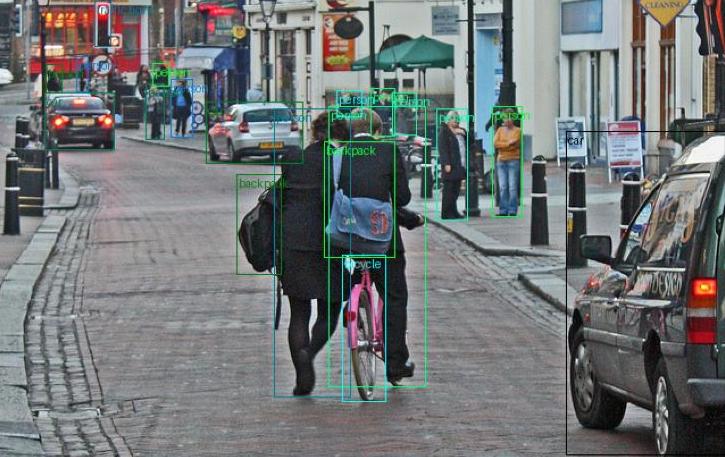
After making the predictions with the model weights, you can visualize the predicted bounding boxes like this:
import matplotlib.pyplot as plt
from torchvision import io, utils

import lightly_train

model = lightly_train.load_model("dinov3/vitt16-ltdetr-coco")
labels, boxes, scores = model.predict("image.jpg").values()

# Visualize predictions.
image_with_boxes = utils.draw_bounding_boxes(
    image=io.read_image("image.jpg"),
    boxes=boxes,
    labels=[model.classes[i.item()] for i in labels],
)

fig, ax = plt.subplots(figsize=(30, 30))
ax.imshow(image_with_boxes.permute(1, 2, 0))
fig.savefig("predictions.png")
The predicted boxes are in the absolute (x_min, y_min, x_max, y_max) format, i.e. represent the size of the dimension of the bounding boxes in pixels of the original image.
Out
The out argument specifies the output directory where all training logs, model exports,
and checkpoints are saved. It looks like this after training:
out/my_experiment
├── checkpoints
│   └── last.ckpt                                       # Last checkpoint
├── exported_models
|   └── exported_last.pt                                # Last model exported (unless disabled)
|   └── exported_best.pt                                # Best model exported (unless disabled)
├── events.out.tfevents.1721899772.host.1839736.0       # TensorBoard logs
└── train.log                                           # Training logs
The final model checkpoint is saved to out/my_experiment/checkpoints/last.ckpt. The last and best model weights are exported to out/my_experiment/exported_models/ unless disabled in save_checkpoint_args.
Tip
Create a new output directory for each experiment to keep training logs, model exports, and checkpoints organized.
Data
LightlyTrain supports training object detection models with images and bounding boxes.
Every image must have a corresponding annotation file (in YOLO format) that contains for every object in the image a line with the class ID and 4 normalized bounding box coordinates (x_center, y_center, width, height). The file should have the .txt extension and an example annotation file for an image with two objects could look like this:
0 0.716797 0.395833 0.216406 0.147222
1 0.687500 0.379167 0.255208 0.175000
The following image formats are supported:
jpg
jpeg
png
ppm
bmp
pgm
tif
tiff
webp
dcm (DICOM)
For more details on LightlyTrain’s support for data input, please check the Data Input page.
Your dataset directory should be organized like this:
my_data_dir/
├── images
│   ├── train
│   │   ├── image1.jpg
│   │   ├── image2.jpg
│   │   └── ...
│   └── val
│       ├── image1.jpg
│       ├── image2.jpg
│       └── ...
└── labels
    ├── train
    │   ├── image1.txt
    │   ├── image2.txt
    │   └── ...
    └── val
        ├── image1.txt
        ├── image2.txt
        └── ...
Alternatively, the splits can also be at the top level:
my_data_dir/
├── train
│   ├── images
│   │   ├── image1.jpg
│   │   ├── image2.jpg
│   │   └── ...
│   └── labels
│       ├── image1.txt
│       ├── image2.txt
│       └── ...
└── val
    ├── images
    │   ├── image1.jpg
    │   ├── image2.jpg
    │   └── ...
    └── labels
        ├── image1.txt
        ├── image2.txt
        └── ...
Logging
Logging is configured with the logger_args argument. The following loggers are
supported:
mlflow: Logs training metrics to MLflow (disabled by default, requires MLflow to be installed)tensorboard: Logs training metrics to TensorBoard (enabled by default, requires TensorBoard to be installed)wandb: Logs training metrics to Weights & Biases (disabled by default, requires wandb to be installed)
MLflow
Important
MLflow must be installed with pip install "lightly-train[mlflow]".
The mlflow logger can be configured with the following arguments:
import lightly_train

if __name__ == "__main__":
    lightly_train.train_object_detection(
        out="out/my_experiment",
        model="dinov3/vitt16-ltdetr-coco",
        data={
            # ...
        },
        logger_args={
            "mlflow": {
                "experiment_name": "my_experiment",
                "run_name": "my_run",
                "tracking_uri": "tracking_uri",
            },
        },
    )
TensorBoard
TensorBoard logs are automatically saved to the output directory. Run TensorBoard in a new terminal to visualize the training progress:
tensorboard --logdir out/my_experiment
Disable the TensorBoard logger with:
logger_args={"tensorboard": None}
Weights & Biases
Important
Weights & Biases must be installed with pip install "lightly-train[wandb]".
The Weights & Biases logger can be configured with the following arguments:
import lightly_train

if __name__ == "__main__":
    lightly_train.train_object_detection(
        out="out/my_experiment",
        model="dinov3/vitt16-ltdetr-coco",
        data={
            # ...
        },
        logger_args={
            "wandb": {
                "project": "my_project",
                "name": "my_experiment",
                "log_model": False,        # Set to True to upload model checkpoints
            },
        },
    )
Exporting a Checkpoint to ONNX
Open Neural Network Exchange (ONNX) is a standard format for representing machine learning models in a framework independent manner. In particular, it is useful for deploying our models on edge devices where PyTorch is not available.
The following example shows how to export a previously trained model to ONNX.
import lightly_train

# Instantiate the model from a checkpoint.
model = lightly_train.load_model(
    "out/my_experiment/exported_models/exported_best.pt"
)

# Export to ONNX.
model.export_onnx(
    out_path="out/my_experiment/exported_models/model.onnx"
)