Quick Start - Object Detection

This guide demonstrates how to use LightlyTrain for object detection with our state-of-the-art LTDETR model built on DINOv3.
Installation
pip install lightly-train
Important
LightlyTrain is officially supported on:
Linux: CPU or CUDA
MacOS: CPU only
Windows (experimental): CPU or CUDA
We are planning to support MPS for MacOS.
Check the installation instructions for more details.
Prediction using LightlyTrain’s model weights
Download an example image
Download an example image for inference:
wget -O image.jpg http://images.cocodataset.org/val2017/000000577932.jpg
Load the model weights
Load the model with LightlyTrain’s load_model function. This will automatically
download the model weights and load the model:
import lightly_train

model = lightly_train.load_model("dinov3/convnext-tiny-ltdetr-coco")
Predict the objects
Run model.predict on the image. The method accepts file paths, URLs, PIL Images, or
tensors as input:
results = model.predict("image.jpg")
results["labels"]   # Class labels, tensor of shape (num_boxes,)
results["bboxes"]   # Bounding boxes in (xmin, ymin, xmax, ymax) absolute pixel
                    # coordinates of the original image. Tensor of shape (num_boxes, 4).
results["scores"]   # Confidence scores, tensor of shape (num_boxes,)
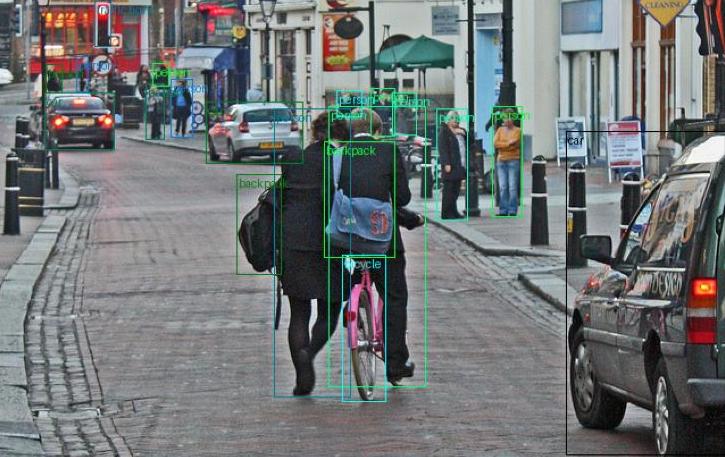
Visualize the results
Visualize the image and results to check what objects were detected:
import matplotlib.pyplot as plt
from torchvision.io import read_image
from torchvision.utils import draw_bounding_boxes

image = read_image("image.jpg")
image_with_boxes = draw_bounding_boxes(
    image,
    boxes=results["bboxes"],
    labels=[model.classes[label.item()] for label in results["labels"]],
)
plt.imshow(image_with_boxes.permute(1, 2, 0))
plt.show()
Train object detection model
Training your own detection model is straightforward with LightlyTrain.
Download dataset
First download a dataset. The dataset must be in YOLO format, see the documentation for more details. You can use labelformat to convert any dataset to the YOLO format:
wget https://github.com/lightly-ai/coco128_yolo/releases/download/v0.0.1/coco128_yolo.zip && unzip -q coco128_yolo.zip
The dataset looks like this after the download completes:
coco128_yolo
├── images
│   ├── train2017
│   │   ├── 000000000009.jpg
│   │   ├── 000000000025.jpg
│   │   ├── ...
│   │   └── 000000000650.jpg
│   └── val2017
│       ├── 000000000139.jpg
│       ├── 000000000285.jpg
│       ├── ...
│       └── 000000013201.jpg
└── labels
    ├── train2017
    │   ├── 000000000009.txt
    │   ├── 000000000025.txt
    │   ├── ...
    │   └── 000000000659.txt
    └── val2017
        ├── 000000000139.txt
        ├── 000000000285.txt
        ├── ...
        └── 000000013201.txt
Start training
Start the training with the train_object_detection function. You only have to specify
the output directory, model, and input data. LightlyTrain automatically sets the
remaining training parameters and applies image augmentations. Of course you can always
customize these settings if needed:
import lightly_train

lightly_train.train_object_detection(
    out="out/my_experiment",
    model="dinov3/convnext-tiny-ltdetr-coco",
    steps=100,  # Small number of steps for demonstration, default is 90_000.
    batch_size=4,  # Small batch size for demonstration, default is 16.
    data={
        "path": "coco128_yolo",
        "train": "images/train2017",
        "val": "images/val2017",
        "names": {
            0: "person",
            1: "bicycle",
            2: "car",
            3: "motorcycle",
            4: "airplane",
            5: "bus",
            6: "train",
            7: "truck",
            8: "boat",
            9: "traffic light",
            10: "fire hydrant",
            11: "stop sign",
            12: "parking meter",
            13: "bench",
            14: "bird",
            15: "cat",
            16: "dog",
            17: "horse",
            18: "sheep",
            19: "cow",
            20: "elephant",
            21: "bear",
            22: "zebra",
            23: "giraffe",
            24: "backpack",
            25: "umbrella",
            26: "handbag",
            27: "tie",
            28: "suitcase",
            29: "frisbee",
            30: "skis",
            31: "snowboard",
            32: "sports ball",
            33: "kite",
            34: "baseball bat",
            35: "baseball glove",
            36: "skateboard",
            37: "surfboard",
            38: "tennis racket",
            39: "bottle",
            40: "wine glass",
            41: "cup",
            42: "fork",
            43: "knife",
            44: "spoon",
            45: "bowl",
            46: "banana",
            47: "apple",
            48: "sandwich",
            49: "orange",
            50: "broccoli",
            51: "carrot",
            52: "hot dog",
            53: "pizza",
            54: "donut",
            55: "cake",
            56: "chair",
            57: "couch",
            58: "potted plant",
            59: "bed",
            60: "dining table",
            61: "toilet",
            62: "tv",
            63: "laptop",
            64: "mouse",
            65: "remote",
            66: "keyboard",
            67: "cell phone",
            68: "microwave",
            69: "oven",
            70: "toaster",
            71: "sink",
            72: "refrigerator",
            73: "book",
            74: "clock",
            75: "vase",
            76: "scissors",
            77: "teddy bear",
            78: "hair drier",
            79: "toothbrush",
        },
    },
)
Once the training is complete, the output directory looks like this:
out/my_experiment
├── checkpoints
│   ├── best.ckpt
│   └── last.ckpt
├── events.out.tfevents.1764251158.ef9b159fe4b8.273.0
├── exported_models
│   ├── exported_best.pt
│   └── exported_last.pt
└── train.log
Load trained model
The best model checkpoint is saved to
out/my_experiment/exported_models/exported_best.pt. You can load it for inference like
this:
# Load the model for inference
model = lightly_train.load_model("out/my_experiment/exported_models/exported_best.pt")

# Run inference
results = model.predict("image.jpg")

# Plot results
image = read_image("image.jpg")
image_with_boxes = draw_bounding_boxes(
    image,
    boxes=results["bboxes"],
    labels=[model.classes[label.item()] for label in results["labels"]],
)
plt.imshow(image_with_boxes.permute(1, 2, 0))
plt.show()
Next Steps
Object Detection Documentation: If you want to learn more about object detection with LightlyTrain.
Distillation Quick Start: If you want to learn how to pretrain/distill models with unlabeled data.
DINOv2 Pretraining: If you want to learn how to pretrain foundation models with unlabeled data.