Connect from Python
This guide shows how to connect to your LightlyStudio Enterprise instance from a Python environment. It is intended for admins who populate or update datasets from Python. Regular users can use the web app without connecting from Python.
Once connected, the Python API works identically to the open-source version. The only difference is that data is stored in a shared database accessible to your entire team.
This guide assumes you are already logged in to your LightlyStudio Enterprise instance with an admin account.
Prerequisites
- Admin access to a running LightlyStudio Enterprise instance
lightly_studioinstalled (pip install lightly-studio). Use exactly the same version as the server for best compatibility. You can check the server version in the GUI footer.
For hardware guidance for the machine running the Python client, see Hardware Requirements.
Step 1: Get Your Connection Credentials
- Open your LightlyStudio Enterprise instance in the browser.
- Go to the
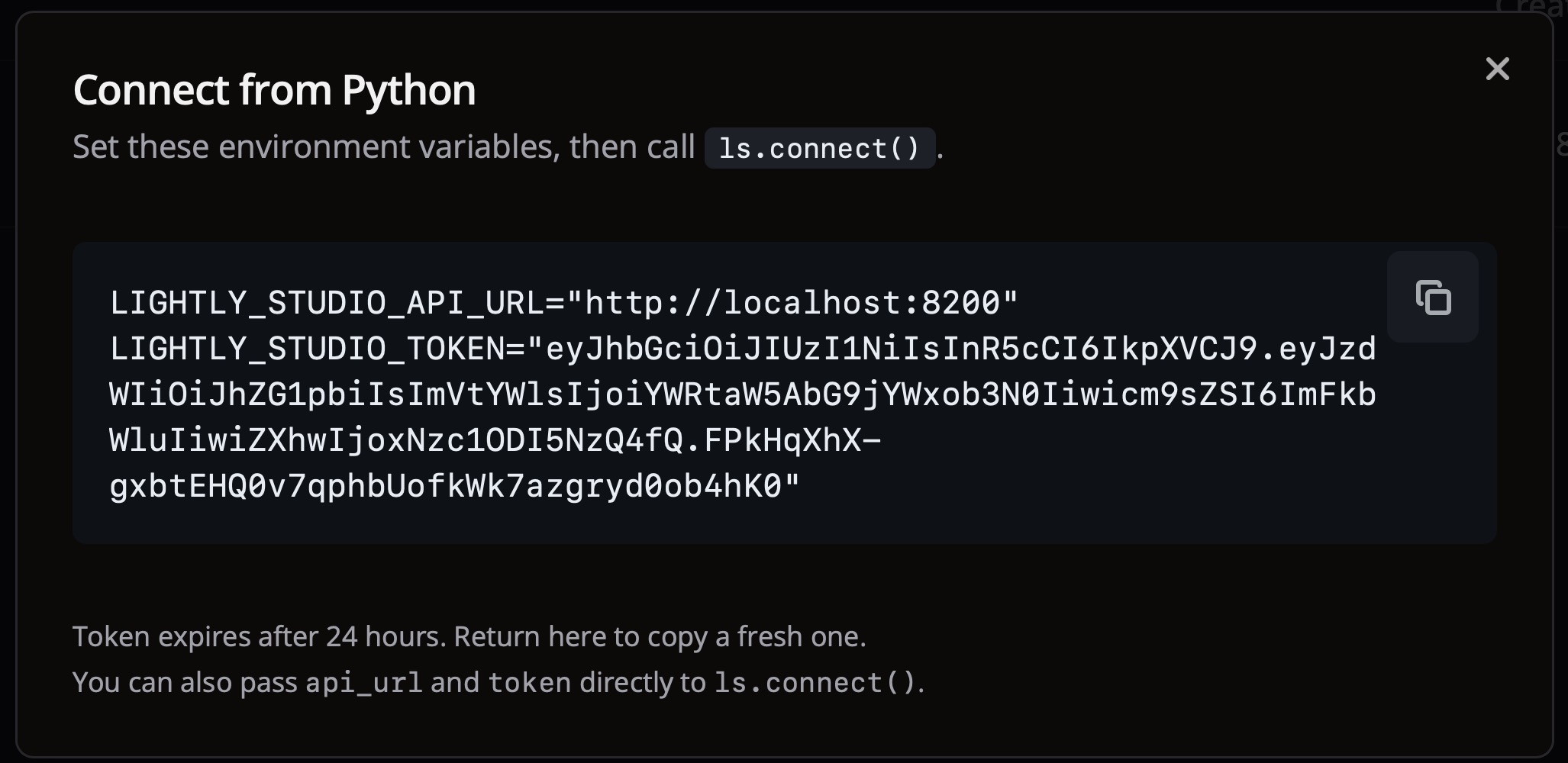
Datasetspage and click the "Connect from Python" button. This button is only available to admins. - A dialog displays two values:
LIGHTLY_STUDIO_API_URL— the base URL of your enterprise instanceLIGHTLY_STUDIO_TOKEN— a JWT token for authentication
- Take note of both values. You will need them to connect from Python.
The dialog looks like this:
Step 2: Configure Your Environment
Create a .env file in your working directory. LightlyStudio reads it automatically.
Just paste the values you copied from the GUI:
LIGHTLY_STUDIO_API_URL="http://your-server:8100"
LIGHTLY_STUDIO_TOKEN="eyJhbGciOiJIUzI1NiIs..."
You can also set them as environment variables in your shell.
export LIGHTLY_STUDIO_API_URL="http://your-server:8100"
export LIGHTLY_STUDIO_TOKEN="eyJhbGciOiJIUzI1NiIs..."
You can also pass the values directly to ls.connect(). Explicit parameters take precedence
over environment variables.
import lightly_studio as ls

ls.connect(
    api_url="http://your-server:8100",
    token="eyJhbGciOiJIUzI1NiIs...",
)
Step 3: Connect and Use the API
import lightly_studio as ls

# Reads LIGHTLY_STUDIO_API_URL and LIGHTLY_STUDIO_TOKEN from .env
ls.connect()

# From here on, the API works exactly as in the open-source version,
# but data is stored in the shared enterprise database.
dataset = ls.ImageDataset.load("my_dataset")
for sample in list(dataset)[:3]:
    print(f"{sample.file_name} has {len(sample.annotations)} annotations")
Note
After ls.connect(), all dataset operations use the enterprise database instead of
a local DuckDB file. You do not need to call ls.start_gui() — the GUI is already
running on the enterprise server.
Next Steps
- Local Storage — use local disk or NAS/shared storage in an on-premise deployment.
- Cloud Storage — configure cloud storage credentials so Python clients can access S3 buckets without local credential setup.
API Reference for ls.connect()
Connect to a remote LightlyStudio enterprise instance.
Exchanges a JWT token or an API key for the connection configuration via
the enterprise API, applies any server-provided cloud storage credentials
to the local environment, then sets up the global database connection using
db_manager.connect.
Parameters can be passed explicitly or read from environment variables
LIGHTLY_STUDIO_API_URL, LIGHTLY_STUDIO_TOKEN, or
LIGHTLY_STUDIO_API_KEY. Each explicit parameter takes precedence over
its corresponding environment variable.
Parameters:
| Name | Type | Description | Default |
|---|---|---|---|
api_url
|
str | None
|
Base URL of the LightlyStudio enterprise instance
(e.g. |
None
|
token
|
str | None
|
JWT token copied from the LightlyStudio enterprise GUI.
Falls back to the |
None
|
api_key
|
str | None
|
API key generated in the LightlyStudio enterprise GUI.
Falls back to the |
None
|
Raises:
| Type | Description |
|---|---|
ValueError
|
If |
ConnectionError
|
If the enterprise instance is unreachable. |
PermissionError
|
If authentication or authorization fails. |
RuntimeError
|
If the server is not configured for remote connections. |
