Embeddings
An embedding is a vector of numbers that captures the visual content of a sample, generated by a machine learning model such as CLIP. Samples that look alike get vectors that are close together, so distance in embedding space is a measure of visual similarity.
Embeddings are the shared foundation under three features in LightlyStudio: search, the embedding plot, and every embedding-based sampling strategy. You do not run anything to get them. LightlyStudio computes embeddings automatically when you add data.
How Embeddings Are Created
LightlyStudio embeds each sample when you add it to a dataset with all loading functions,
for example with add_images_from_path for an image dataset or
add_videos_from_path for a video dataset.
To skip embedding, pass embed=False to the add method. This is faster, but it
disables search and the embedding plot for those samples. For videos this skips
only the whole-video embedding; frames are still embedded unless you also pass
embed_frames=False (see below).
Embeddings are stored in the database and reused when you reopen the dataset. Only new samples are embedded. See Reuse Datasets.
Beyond whole images and videos, LightlyStudio embeds two more levels of your data.
Video frame embeddings
For a video dataset, LightlyStudio embeds each video as a whole and also embeds the
extracted frames as images. Each frame gets its own embedding, stored alongside the
frame. Frame embeddings are on by default; pass embed_frames=False to
add_videos_from_path to skip them.
Object-level embeddings
LightlyStudio embeds each object (an object-detection box or segmentation mask) as its own crop. This unlocks the embedding plot and similarity search on individual objects, the same way they work for whole images. Browse objects in the Annotations view of the GUI.
Object embeddings are on by default; the add_annotations_from_* methods accept
embed_annotations=False to skip them.
Editing an annotation does not update its embedding
An object keeps the embedding of its original crop. If you move or resize a box, LightlyStudio does not recompute its embedding. Support for this is planned.
Built-in Embedding Models
LightlyStudio ships with two embedding models:
- MobileCLIP (
mobileclip_s0, 512 dimensions) embeds images and object crops. - Perception Encoder (
PE-Core-T16-384) embeds videos and video frames, so the frames of a video dataset share the space of its videos.
The Embedding Plot (GUI)
Click Embed in the top right of the GUI to open the embedding plot. It shows your samples as points in 2D. The plot has two layouts:
- Default layout. PaCMAP projects embedding space to 2D. Similar samples are near each other. The axes have no meaning; only the distance between points does.
- Text axes. You describe each end of the two axes in natural language. The position of a sample shows how well it matches each description. See Text axes.
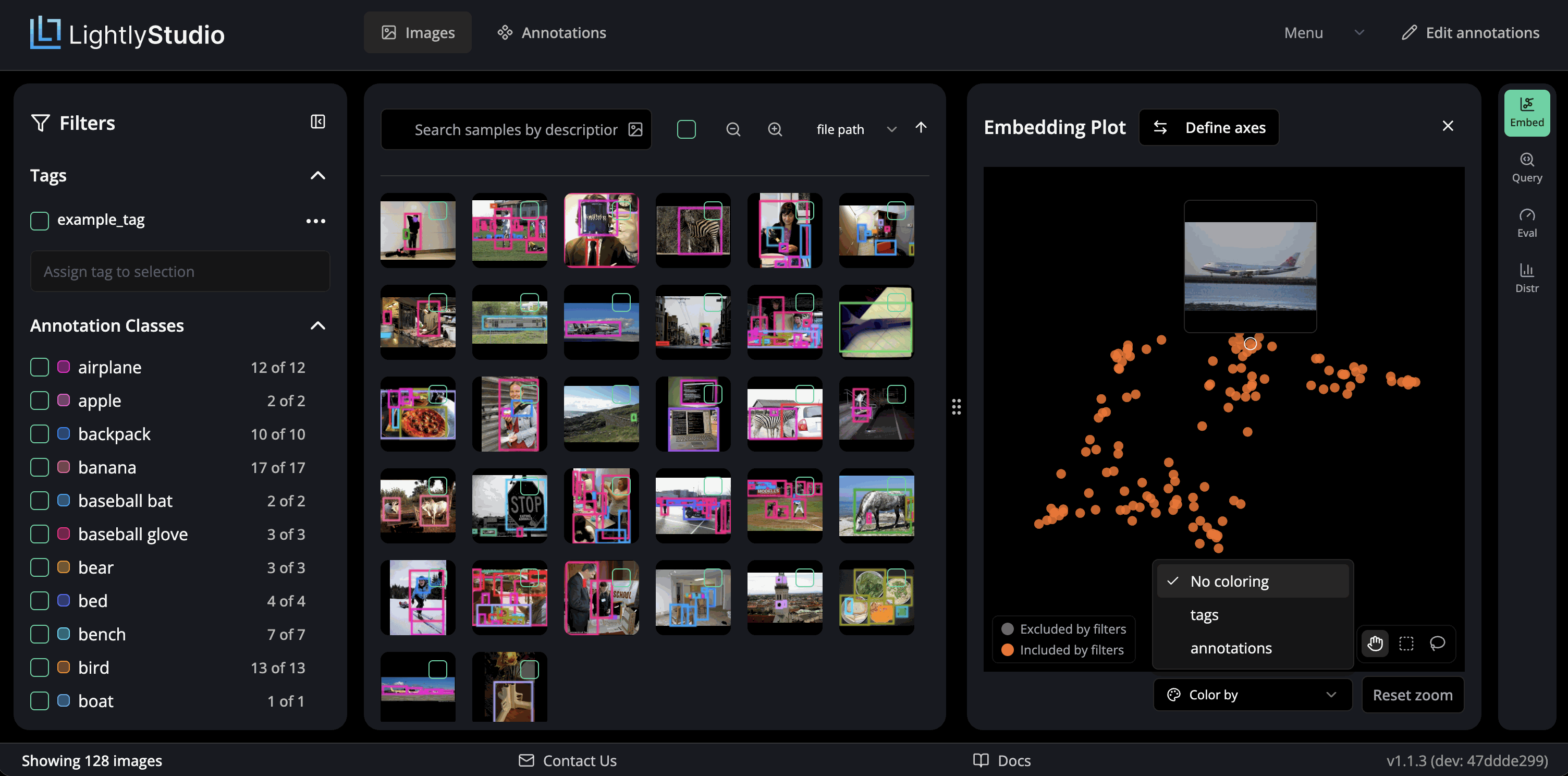
In both layouts you can:
- Color the points by tag, annotation class, or metadata (text and true/false fields) using the Color by popover.
- Hover a point to preview its thumbnail.
- Select a region with Rectangle or Lasso to scope the grid to the samples in that part of the plot, and show or hide the points that your current filters exclude.
- Double-click a legend entry to isolate that category, so only its points stay visible. Single-click to toggle a category visibility.
Text axes
With text axes, you describe each end of the two axes in natural language, and the plot
sorts your samples by those concepts. For example, put
night and day on the horizontal axis and indoors and outdoors on the vertical
axis. Night photos then move to the left, and outdoor photos move to the top.
To set the axes:
- In the embedding plot, click Define axes.
- Under Horizontal, type a description in Left and in Right.
- Under Vertical, type a description in Bottom and in Top.
- Click Apply axes, or press Enter.
You must type all four descriptions. The plot then shows each description at its edge of the plot. If a description is too long to show, hover it to see the full text.
Two dashed lines show where each axis is zero. A sample on the vertical line is as similar to Left as to Right. The farther right a sample is, the more it matches Right compared to Left. The vertical axis works the same way.
To change the descriptions, click Edit axes. To go back to the default layout, click Reset axes. LightlyStudio keeps your descriptions until you reload the page, so you can apply them again.
A new layout clears the selection
When you apply new axes or reset them, the plot resets the zoom and clears your selection. A selected region belongs to the layout you drew it on.
Write good descriptions
- Describe content that you can see in the image, such as
a photo at night. - Use two opposite descriptions for each axis.
- Try more than one wording. Small changes in the text can move the points.
How text axes work
LightlyStudio embeds the four descriptions with the text encoder of the collection's
embedding model, and scales each one to length 1. The horizontal direction is
Right − Left, and the vertical direction is Top − Bottom. The x value of a sample is
the dot product of its embedding with the horizontal direction. The y value is the same
for the vertical direction.
LightlyStudio does not rescale the values. If the points spread little along an axis, your samples differ little in that concept. The positions are calculated for each request and are not stored.
Text axes need a text encoder that shares the embedding space of your samples. The
built-in models have one. If you use your own embedder,
implement TextEmbedder.
What Embeddings Power
- Similarity search by text or image. See Search and Filter.
- Text axes on the embedding plot. See Text axes.
- Sampling strategies such as diverse, deduplication, similarity, and typicality/outliers. See Sampling.
Using Your Own Embeddings
Beta API
The embeddings API is in beta. Its interface may change in future releases without a deprecation period.
You may want to replace the built-in models — for example to use a domain-specific model, or to reuse vectors you already computed in another pipeline.
Both cases use the same mechanism: subclass the capability interfaces for the inputs
you can embed and register your embedder with ls.register_default_embedder(...)
before you add to a dataset or launch the GUI. The only difference is what your
implementation of embed_images does inside.
| Use-case | What embed_images does |
Example |
|---|---|---|
| Compute embeddings on the fly | Runs your model on the given file paths | example_custom_embedding_model.py |
| Load precomputed embeddings | Looks up stored vectors by file path | example_load_existing_embeddings.py |
An embedder subclasses Embedder through one interface per input it can embed.
Subclass only the capabilities your model provides. Every interface inherits
embedding_space_spec from Embedder to describe the embedding space; embeddings
from the same space are comparable.
The interfaces live in lightly_studio_serve.embedder. LightlyStudio calls each at
one of two points — when you add data (ingest) or while the GUI answers a
query. The API reference gives the full method signatures.
| Interface | Method | Embeds | Called during |
|---|---|---|---|
ImagePathEmbedder |
embed_images |
Whole images by path | Ingest |
ImageBytesEmbedder |
embed_image_bytes |
Uploaded images, as raw file bytes | GUI (image search) |
ImageCropPathEmbedder |
embed_image_crops |
Annotation crops | Ingest |
ImagePILEmbedder |
embed_images_pil |
In-memory images, such as video frames | Ingest |
VideoPathEmbedder |
embed_videos |
Whole videos by path | Ingest |
TextEmbedder |
embed_text |
Text queries and axis descriptions | GUI (text search, text axes) |
Examples below show how an embedder is built from the image interfaces.
A capability you skip disables its feature
A capability you do not subclass, such as TextEmbedder, leaves its feature
unavailable — text search and text axes, in that case.
Loading precomputed embeddings
Use this when you already have vectors — from a previous run, an external pipeline,
or a research model. Instead of running a model, embed_images looks up each file
path in your store. You only need to subclass ImagePathEmbedder.
embed_images(paths) returns an EmbeddingResult(embeddings, kept_indices).
Return a matrix with one row for each file path you have a vector for, and use kept_indices
to list which input positions those rows belong to. This lets you skip any file path
that has no vector.
import numpy as np
from numpy.typing import NDArray

from lightly_studio_serve.embedder import ImagePathEmbedder

import lightly_studio as ls

EMBEDDING_DIMENSION = 512


class LoadExistingEmbedder(ImagePathEmbedder):
    def __init__(self) -> None:
        self._filepath_to_embedding: dict[str, NDArray[np.float32]] = ...  # Implement the loading logic here.

    def embedding_space_spec(self) -> ls.EmbeddingSpaceSpec: ...

    def embed_images(self, paths: list[str]) -> ls.EmbeddingResult:
        rows: list[NDArray[np.float32]] = []
        kept_indices: list[int] = []
        for index, filepath in enumerate(paths):
            embedding = self._filepath_to_embedding.get(filepath)
            if embedding is None:
                continue  # No vector for this path, so skip it.
            rows.append(embedding)
            kept_indices.append(index)
        embeddings = (
            np.stack(rows).astype(np.float32)
            if rows
            else np.empty((0, EMBEDDING_DIMENSION), dtype=np.float32)
        )
        return ls.EmbeddingResult(embeddings=embeddings, kept_indices=kept_indices)


ls.register_default_embedder(embedder=LoadExistingEmbedder())
For the full runnable version, including how to key vectors by the absolute path that
the backend stores, see
example_load_existing_embeddings.py.
Computing embeddings on the fly
Use this when you want a different model than the built-ins. Load your model in
__init__ and run it inside the embed methods. Subclass one interface per
capability. This embedder handles images by path, uploaded images, image crops, and
text, so text queries and query images compare against image embeddings.
ImageBytesEmbedder is what enables image search in the GUI.
import numpy as np
from numpy.typing import NDArray

from lightly_studio_serve.embedder import (
    ImageBytesEmbedder,
    ImageCropPathEmbedder,
    ImagePathEmbedder,
    TextEmbedder,
)

import lightly_studio as ls

EMBEDDING_DIMENSION = 512


class CustomEmbedder(
    ImagePathEmbedder,
    ImageBytesEmbedder,
    ImageCropPathEmbedder,
    TextEmbedder,
):
    def __init__(self) -> None:
        ...  # Load your model and preprocessing here.

    def embedding_space_spec(self) -> ls.EmbeddingSpaceSpec: ...

    def embed_image_bytes(self, images: list[bytes]) -> ls.EmbeddingResult: ...

    def embed_image_crops(self, crops: list[ls.ImageCrop]) -> ls.EmbeddingResult: ...

    def embed_text(self, texts: list[str]) -> ls.EmbeddingResult: ...

    def embed_images(self, paths: list[str]) -> ls.EmbeddingResult:
        kept_indices: list[int] = []
        vectors: list[NDArray[np.float32]] = []
        for index, filepath in enumerate(paths):
            image = self._load(filepath)  # Skip a file you cannot read.
            if image is None:
                continue
            vectors.append(self._model.encode(image))
            kept_indices.append(index)
        embeddings = (
            np.stack(vectors).astype(np.float32)
            if vectors
            else np.empty((0, EMBEDDING_DIMENSION), dtype=np.float32)
        )
        return ls.EmbeddingResult(embeddings=embeddings, kept_indices=kept_indices)


ls.register_default_embedder(embedder=CustomEmbedder())
For the full runnable version, which wraps MobileCLIP and also implements
embed_image_bytes, embed_image_crops and embed_text, see
example_custom_embedding_model.py.
Text search needs a shared text encoder
For the text search to return meaningful results, your image and text encoder must share the same embedding space.
Serving an embedder from a remote server
Use a remote server when the model must not run in LightlyStudio. For example, the weights must stay on your machine, or the model needs its own GPU or dependency versions. Search then sends each query to your server, which embeds it and returns the vector.
1. Serve the model. The easiest way is lightly_studio_serve.serve: implement
TextEmbedder for text search and ImageBytesEmbedder for image search, then serve it.
You can also write your own server, in any language, that speaks the same protocol.
from lightly_studio_serve import serve

serve(MyEmbedder(), api_key="your-secret-key")
serve binds 127.0.0.1:8080 by default. Use TLS for any other address, because each
request carries the API key; serve and LightlyStudio warn about plain HTTP. See the
lightly_studio_serve README
for TLS and limits.
2. Check the server. The conformance kit checks each capability the server advertises:
LIGHTLY_STUDIO_SERVE_API_KEY=your-secret-key lightly-studio-serve conformance http://127.0.0.1:8080
See the Serving API for serve, create_app, the protocol
and the conformance command.
3. Connect a dataset. You can embed the images on the server at ingestion, or point a filled space at the server.
Embed at ingestion. Register the server before ingestion. Then add_images_from_path
sends each image to the server, so the server must implement ImageBytesEmbedder:
import lightly_studio as ls
from lightly_studio.embed.remote.connection import build_client
from lightly_studio.embed.remote.embedder import RemoteEmbedder

ls.register_default_embedder(
    embedder=RemoteEmbedder.connect(
        client=build_client(url="http://127.0.0.1:8080"), api_key="your-secret-key"
    )
)
dataset = ls.ImageDataset.create()
dataset.add_images_from_path(path="my_images/")
ls.start_gui()
The dataset stores the URL and the API key in plain text. As a result, lightly-studio gui
in a new process searches on the server with no new registration. Give the key with
api_key=, not in the headers of the client, because the dataset stores only api_key.
If the dataset already stores a server for the space, ingestion keeps that server.
For a full runnable version, which starts a small server that runs on CPU, see
example_remote_embedder.py.
Search in a space that is already filled. If a local embedder or precomputed embeddings filled the space, point the space at the server:
import lightly_studio as ls

ls.register_default_embedder(embedder=MyIngestionEmbedder())
dataset = ls.ImageDataset.create()
dataset.add_images_from_path(path="my_images/")

ls.register_remote_embedder(dataset=dataset, url="http://127.0.0.1:8080", api_key="your-secret-key")
ls.start_gui()
The dataset stores the URL and the API key in plain text, so search uses the server also
after you open the dataset again. Use register_remote_embedder also to change the URL or
the key of a stored server.
Limits
- A local embedder registered for the same space still serves the capabilities it implements. Register only ingestion capabilities locally so search goes to the server.
- Without
ImageBytesEmbedderon the server or locally, image search is not available. - Images embed on the server at ingestion only if the server implements
ImageBytesEmbedderand no local embedder registered for the same space embeds images. Annotation crops and video frames follow the same rule.
register_remote_embedder raises a RemoteEmbedderError from
lightly_studio.embed.remote.errors and stores nothing if the URL is malformed or
refused, the server cannot be reached or rejects the key, or the dataset holds no
embeddings in the server's space with the same dimension. If the server fails later,
search in the GUI shows an error message.
